Mashed up WordPress Nav Menus & Custom Meta Boxes

Mashed up WordPress Nav Menus & Custom Meta Boxes

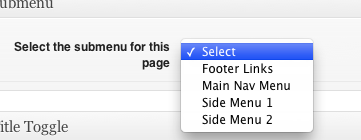
Problem: I needed a meta box for Pages that was dynamically populated by the site’s custom Menus.

Solution: Added this to my CMB metaboxes code:


Genesis Accordion plugin

Update: I’m working on a new release of this plugin that lets you choose either a horizontal accordion or a vertical one. I’ll release it on the WordPress plugins repository once I’ve got it finished.

If you would like to test a beta of the new version, you can download it here. I’d appreciate any feedback you have. The admin is still rough & needs some more attention. The basics are working, though. 

Interested in testing a Genesis plugin for WordPress? I had a client who wanted an accordion plugin (think Slide Deck) on their site. More than just sliding images around, it would have to draw from content: Posts, Pages, etc. A quick search of the Web led me to jQuery Easy Accordion. We’re in business.

I use Genesis for the WordPress themes I build. The good folks at StudioPress built a great slider plugin so it was a no-brainer to use that as my starting point. Rip out the javascript & replace that with jQuery Easy Accordion. Rename things so as not to conflict with Genesis Slider (should someone use both on their site). Build in new configuration options. Create the .pot file for translations. It’s a plugin!

You can download Genesis Accordion here.

Genesis Accordion requires you to be using the Genesis framework. Without that, this plugin won’t work.

You can set whether or not the accordion auto-starts. You can select which post type you want it to draw from, what category, etc. Each slide in the accordion has the slide title running vertically up the edge of the slide. By default, this is also the title of the Post / Page. Since these titles can run longer than the space on the edge of the slide allows, you can opt to either truncate the titles to a specific number of characters or you can create a custom field called Accordion Title & use that.

Download it & give it a shot. Leave a comment & let me know how it works, problems, conflicts, etc. It’s a relatively quick & dirt release, mostly a proof-of-concept. I make no guarantees with it, though I did test in on WP 3.3.1 with various other plugins enabled.

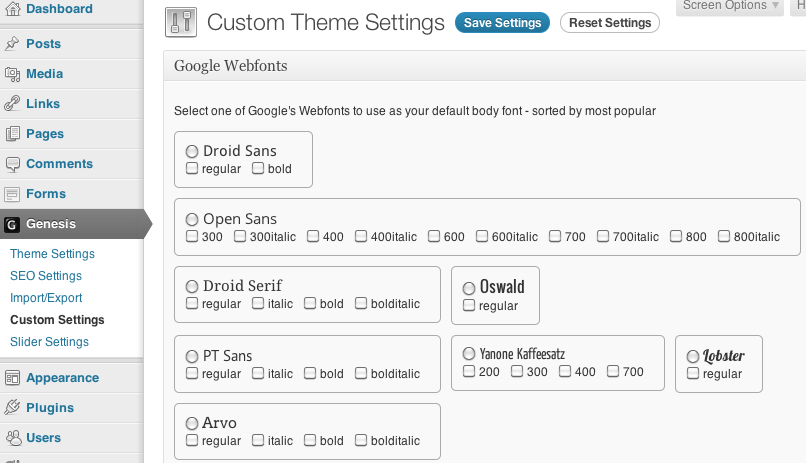
Fun with Google Webfonts API, Genesis and WordPress

Fun with Google Webfonts API, Genesis and WordPress

Google Webfonts, Genesis, and WordPress

Vimeo and Youtube iframe shortcodes

I like how WordPress automatically coverts a Youtube url into a video embed, but I’m not really happy with the use of the embed tag. I like the newer iframe methods Youtube and Vimeo both use and I wanted a way to easily drop those into a Post or Page.

So I wrote two shortcodes to do this, one for Youtube and one for Vimeo.

Youtube shortcode

Start with the address (URL) of a Youtube video. For instance, say you’re watching this Youtube video: http://www.youtube.com/watch?v=aBnGbFjlhM0&feature=grec_index. You would copy everything from the left up to the ampersand (this-> &): http://www.youtube.com/watch?v=3s4Czla6tXc. 

This becomes the src attribute of your shortcode and you write this in your Post or Page:

[ youtube src=http://www.youtube.com/watch?v=3s4Czla6tXc ]

If you want to add a width and height attribute, you can add width and height like so:

[ youtube src=http://www.youtube.com/watch?v=3s4Czla6tXc width=600 height=450 ]

Tip: If you click on the Share button underneath the Youtube video, then again on Embed, you’ll see, in the embed code, the width and height of the video you’re watching.

Vimeo shortcode

Vimeo URLs are easier to work with, so far. They look pretty much like this: http://vimeo.com/31082448. Copy the address and it becomes the src attribute of your shortcode. Write it in your Post or Page:

[ vimeo src=http://vimeo.com/31082448 ]

If you want to specify a width and height, you can add those attributes like so:

[ vimeo src=http://vimeo.com/31082448 width=640 height=360 ]

Tip: To get the width and height of a Vimeo video, click on the embed link on the right side of the video player (mouse over the video to see these). Then click on the Customize embed options. Enter a width value and press the Tab key on your keyboard (or click on the height field). Vimeo will automatically calculate the correct height value for you. Use those for your width and height attributes in your shortcode.

Both shortcodes (with uStream support, too):

Fluid Images Plugin

WP Fluid Images runs when you insert an image into a Post or Page. It removes the fixed width and height attributes from the image tag. If you insert an image from the image uploader, by default, a width and height attribute is inserted into the image tag with fixed pixel values. This plugin prevents this from happening, because this can be problematic if your theme is built using responsive design methods. The plugin also adds a style tag in the header that sets a max-width rule of 100%. This insures that any image in a Post or Page won’t extend past the width of the Post or Page.

If you resize an image in the Visual Editor, a new width and height attribute get added to the image. WP Fluid Images loads a jQuery script that examines the .post, or .page divs for image tags. It calculate the image’s width as a percentage of the .post or .page div, removes the width and height attributes, and adds a style attribute with a width value set to the calculated percentage.

What is the concept of “Fluid Images”?

The idea behind fluid images is that instead of having images that size proportionally and smoothly as your web page’s width increases or decreases. Ethan Marcotte wrote an article on the idea at A List Apart:
You can also learn more at his site: Unstoppable Robot Ninjas. Fluid Images is an important consideration in responsive web design. Which segues to:

What is Responsive Web Design?

Responsive Web Design is the idea of having your site’s design be flexible enough to resize based on the width of the browser window. This allows you to create a single, adjustable design that works regardless of the size of the device. It’s a nice alternative to building separate designs for desktop browsing, tablets, mobile browsers, etc.

You can download WP Fluid Images here.

Foomark WordPress Widget

Foomark WordPress Widget

Foomark

Foomark is a bookmarking site, in the vein of Delicious & Magnolia. Up to now, there wasn’t a way to integrate your foomarks with your blog or website – somthing I wanted to do. Now there is.

This plugin lets you share your foomarks in a widget. It takes the JSON feed from Foomark & outputs the title of each foomark, linked to that bookmarked site. At the bottom of the widget is a link to your Foomark page.

You can download the plugin here.

Notes

  • The plugin reads Foomark’s JSON feed from api.foomark.com.
  • There is a 3-second timeout on the connection. If api.foomark.com isn’t able to respond, an error message appears, rather than holding up the rendering of your site.
  • The plugin is internationalized with Spanish (Mexican) and German translation files.

If you have any questions, please use the official support forums.

AccessU 2011 – Accessibility and WordPress

My slides from AccessU 2011, Accessible WordPress Theme Development

Using jQuery to mimic CSS3′s :nth-last-child

I came across the need for using CSS3′s :nth-last-child pseudo-selector recently. What does this do? Nth-last-child lets you select the nth (2nd, 3rd, 4th, etc) child of some element starting from the last one. For example:

[code]li:nth-last-child(-n+4) //would select the last four list items in a list.[/code]

To style the 2nd-to-last list item only, this example would work:

[code]li:nth-last-child(-n+2)[/code]

The situation I had was there is a list of authors for a site. More than wp_list_authors, it was a custom-generated list of certain users. The list is styled to look like a box with two columns. There are dividers between each author both horizontally and vertically, with the bottom two authors having no bottom divider.

This list:

[code]
<ul id="authors">

<li class="even"><a class="authorImg">
<img src="avatar.jpg" alt="" height="30px" /></a>
<a class="authorName">John Doe</a></li>

<li class="odd"><a class="authorImg">
<img src="avatar.jpg" alt="" height="30px" /></a>
<a class="authorName">Hap Pill</a></li>

...(snip)...

<li class="odd"><a class="authorImg">
<img src="avatar.jpg" alt="" height="30px" /></a>
<a class="authorName">John Hancock</a></li>

<li class="even"><a class="authorImg">
<img src="avatar.jpg" alt="" height="30px" /></a>
<a class="authorName">Lorem Ipsum</a></li>

<li class="odd"><a class="authorImg">
<img src="avatar.jpg" alt="" height="30px" /></a>
<a class="authorName">Jane Doe</a></li>

</ul>
[/code]

… needs to look like this:

[code]
<ul id="authors">
<li class="even"><a class="authorImg" href="#"><img src="http://slash25.com/wp/wp-content/uploads/2009/06/avatar.jpg" alt="" height="30px" /></a><a class="authorName" href="#">John Doe</a></li>
<li class="odd"><a class="authorImg" href="#"><img src="http://slash25.com/wp/wp-content/uploads/2009/06/avatar.jpg" alt="" height="30px" /></a><a class="authorName" href="#">Hap Pill</a></li>
<li class="even"><a class="authorImg" href="#"><img src="http://slash25.com/wp/wp-content/uploads/2009/06/avatar.jpg" alt="" height="30px" /></a><a class="authorName" href="#">Foo Bar</a></li>
<li class="odd"><a class="authorImg" href="#"><img src="http://slash25.com/wp/wp-content/uploads/2009/06/avatar.jpg" alt="" height="30px" /></a><a class="authorName" href="#">Ima Doody</a></li>
<li class="even"><a class="authorImg" href="#"><img src="http://slash25.com/wp/wp-content/uploads/2009/06/avatar.jpg" alt="" height="30px" /></a><a class="authorName" href="#">Chew Bacca</a></li>
<li class="odd"><a class="authorImg" href="#"><img src="http://slash25.com/wp/wp-content/uploads/2009/06/avatar.jpg" alt="" height="30px" /></a><a class="authorName" href="#">John Hancock</a></li>
<li class="even"><a class="authorImg" href="#"><img src="http://slash25.com/wp/wp-content/uploads/2009/06/avatar.jpg" alt="" height="30px" /></a><a class="authorName" href="#">Lorem Ipsum</a></li>
<li class="odd"><a class="authorImg" href="#"><img src="http://slash25.com/wp/wp-content/uploads/2009/06/avatar.jpg" alt="" height="30px" /></a><a class="authorName" href="#">Jane Doe</a></li>
</ul>[/code]

Removing the border on the last list item’s span is easy. Use the :last-child pseudo-selector and the border’s gone.

[code]#authors li.odd:last-child span {
border-bottom: none;
}[/code]

Removing the border on the 2nd-to-last one should be this easy:

[code]#authors li:nth-last-child(-n+2) span {
border-bottom: none;
}[/code]

But for now, that only works in Safari 4. (and maybe Opera?) so how to get that effect in Safari 3 and Firefox 3? (I have not gotten this to work in IE7 or 6. Those are coming.) Use jQuery and a three-line script.

Here’s what I cobbled together from digging through the jQuery documentation:

[code]//removes bottom border from next-to-last span in the authors listings
var $curr = $('#authors li:last');
$curr = $curr.prev().children('span');
$curr.css('border-bottom','none');
[/code]

The script first locates the last list item. Then it looks for the previous element of that type, then drills down to the children elements that are spans. In this case, there’s only one. Lastly, the script applies a CSS rule of no border to the span.

Is it perfect? Almost. I’ll need to figure out how to get IE7 and, unfortunately for this job, IE6 to render the next-to-last item correctly.

The Art of Alt

The alt attribute. One of the two easiest to implement but often unused features of HTML. It’s a required attribute of the img tag. What is it? It’s the textual alternative of the image. In other words, if you can’t see the image, it’s what conveys the information — the meaning, you’re unable to see.

Why is it important?

First off, not all users of the Web are able to see.

A person who is blind is completely capable of using the Web through assistive technology such as a screen reader. This is a piece of software that reads out a Web page. Not just the text sighted users would see, but also the semantics of various elements on a page. Text wrapped in strong tags, emphasis tags, headings, language shifts, etc. When a screen reader encounters an image, the image is identified as such, then the alt attribute is read. If an image is used for a link, the link is identified, then the image, then the alt attribute is read.

If no alt attribute is present, the screen reader identifies the image and the user is left to his or her imagination as to what it might be. If you publish a website, it’s somewhat inherent in that action that you want people to satisfactorily browse your site. Alt attributes help make that possible for the non-sighted audience.

A second reason is that non-sighted software programs might visit your site, too.

Search engine spiders and bots. These programs do not contain eyeballs. When they encounter an img tag, without an alt attribute, the exact meaning and purpose of that image is not known. You include an alt attribute and you’ve just enhanced the meaning of the pages on your site. This is additional information to add to your page’s search relevancy and just might assist in better search rankings.